
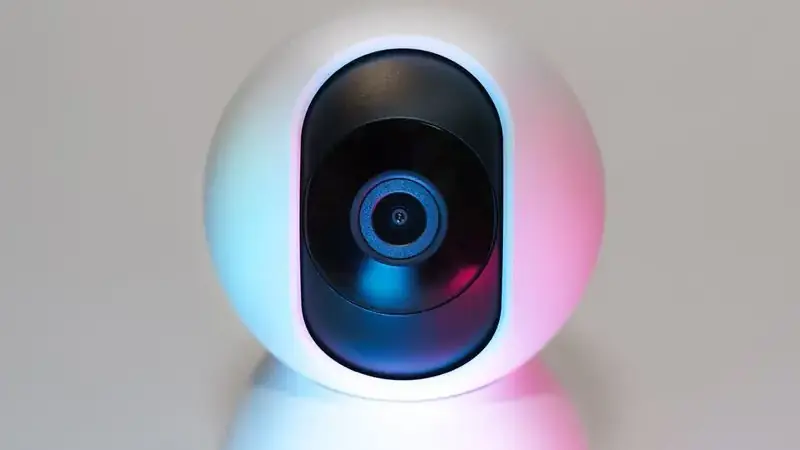
Light first, everything else second
Nothing improves video quality like light. Face your brightest window or lamp; keep bright sources out of the frame behind you. Phone cameras in good light look three times the price. In bad light, no setting saves you.
Frame like you mean it
Eye-level phone, arm's length, head and shoulders. A stable phone beats a handheld one: prop it on books if you have no stand. The Umingle app shows your preview in the corner, so frame against that, not against a mirror.
Network is quality
Video bitrate follows connection strength. On weak networks the app drops quality to keep the call alive, which is the right trade but looks rough. Strong Wi-Fi close to the router is the biggest quality lever after lighting. The lag fix guide stabilizes the connection side.
Phone settings that help
Wipe the camera lens: a smudged lens is the most common "bad camera" in existence. Disable battery-saver restrictions for the app so the processor is not throttled mid-call. And if the feed is black rather than blurry, that is a different problem: the camera fix guide and the video chat guide have you covered.